> ## Documentation Index
> Fetch the complete documentation index at: https://docs.kameleoon.com/llms.txt
> Use this file to discover all available pages before exploring further.
# Manage your feature flags
> Search, filter, sort, and inspect your feature flags and their rules from the Overview tab, in Collapsed or Expanded view, and perform actions on them.
To learn how to create a new feature flag, read [Kameleoon's article on the subject](./create-a-feature-flag).
## Access the Feature flags dashboard
To access the Feature flags dashboard, click **Features** > **Flags & Experiments**. The dashboard opens on the Overview tab.

Use the environment dropdown to choose which environment's data the table displays:
* **Production**
* **Staging**
* **Development**
* **All environments**, which shows data from every environment at once and changes the table's layout. Read [View flags across all environments](#view-flags-across-all-environments) for details.
Use the view toggle to switch how the table displays your flags:
* **Collapsed:** A compact view showing one row per feature flag.
* **Expanded:** Shows each flag's rules beneath it, including each rule's name, type, and status.
## Collapsed view columns

In Collapsed view, each row represents a feature flag and displays the following columns:
* **Name:** The flag's name. A colored bar to the left of the name indicates the flag's project.
* **Rule status:** The number of active rules out of the flag's total rules, for example **2/3 rules Active**, with a colored dot indicating the status.
* **Rule type:** The number of rules of each type, shown next to a distinct icon for Targeted Delivery, [Experimentation](../using-the-rollout-planner/optimizations-and-scheduling/create-feature-experiments), and [Progressive Delivery](../using-the-rollout-planner/rules-and-targeting/define-progressive-delivery-rules).
* **Modified:** The flag's last-modified date, shown as a relative time (for example, **yesterday**) or a date depending on how recently the change occurred.
* **Created:** The flag's creation date.
* **Tags:** The flag's tags.
* **Team:** The flag's team. Blank if the flag has no team.
If the table can't display every column at once, click the arrow at the end of the row to reveal the remaining columns.
## View additional details for a flag
Hover over the information icon on a flag's card to see additional details. The tooltip scrolls, so keep scrolling to see every field. It has two sections:

**On this environment** shows information specific to the environment you've selected in the dropdown, including its key dates, such as the **Last state changes** date, which shows when the flag's state last changed in that environment.
**On the feature flag (all environments)** shows information that applies to the flag generally, across all environments:
* URL
* Feature key
* Feature status, which refers to the flag's health rather than its on/off state. Read [Manage feature flag technical debt](./manage-feature-flag-technical-debt) to learn how Kameleoon calculates this status.
* Tags
* Creator
* Key dates: creation date, last content change, last modification, and last evaluation.
## Find a feature flag
Use the search bar, the Filters tab, and the Columns tab's sort options to locate specific flags.
Use the search bar at the top of the Overview tab to find a flag by name.
### Filter flags

Click **Filters** in the right sidebar to filter the flags in the table. Filter by:
* Project
* Tags
* State
* Health
* Key date
* Rule state
* Rule type
* Integrations
[Save these filters as a view](#select-a-view) for later retrieval.
Kameleoon generates a unique URL with custom parameters when you apply filters. To share this URL with team members, click **Copy link to this filtered dashboard** on the right side of the dashboard.
### Sort flags by modification date, creation date, or tags
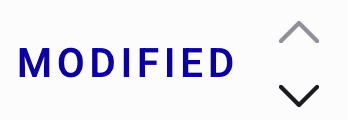
Hover over the **Modified** or **Created** column header to reveal two arrows. Click the upward arrow to sort flags from least recent, or the downward arrow to sort flags from most recent.
Hover over the **Tags** column header to reveal the same two arrows, and click one to sort flags alphabetically or in reverse alphabetical order.
### Choose which columns appear
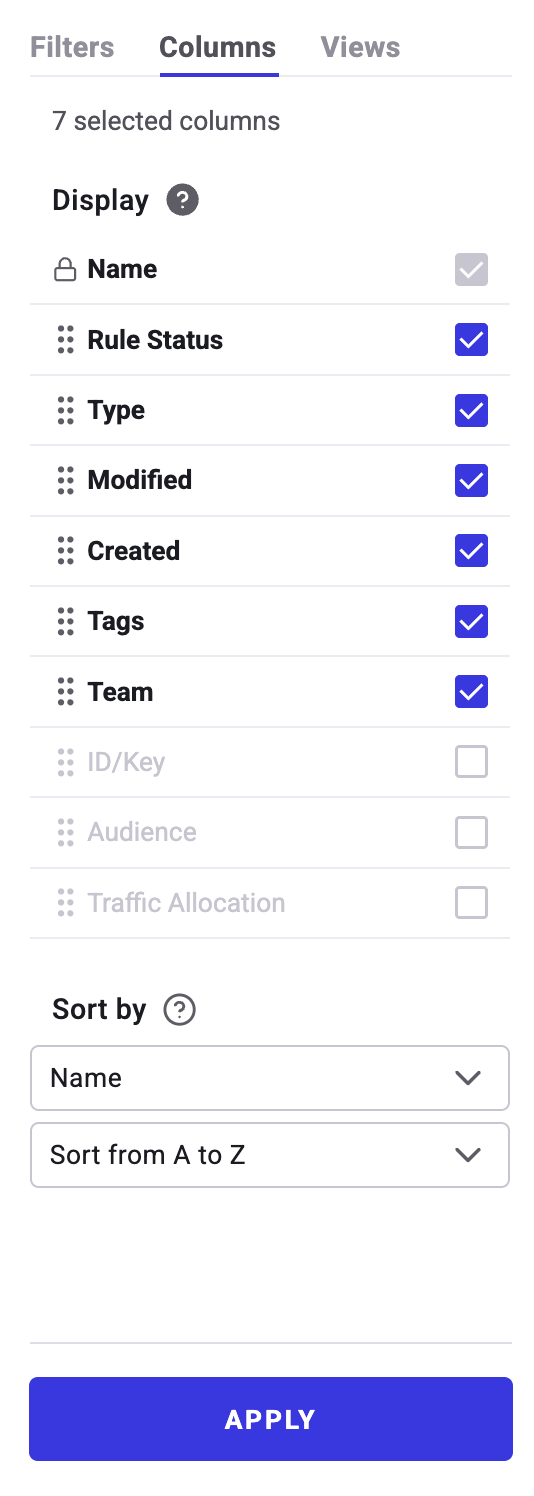
Click **Columns** in the right sidebar to choose which columns appear in the table. Check a column to show it, or uncheck it to hide it. Kameleoon always shows the **Name** column; you can't hide it. In Expanded view, this selection also determines which columns appear on each rule's row.
Besides the default columns covered in [Collapsed view columns](#collapsed-view-columns), you can also choose to display **ID/Key**, **Audience**, and **Traffic Allocation**.
Define a sorting rule under **Sort by**. For example, select **Name** from the first dropdown and **Sort A to Z** from the second dropdown to sort flags alphabetically by name.
## Select a view
The **Production environment** view is applied by default.
Click **Views** in the right sidebar to select a saved view, or create a custom view to save your current filter and column settings.
To load a specific view automatically when the dashboard opens, set it as the default view by clicking the **three-dots** menu > **Default**.
Kameleoon generates a unique URL with custom parameters when you create a view. To share this URL with team members, click the **three-dots** menu > **Copy URL**.
## Turn a flag on or off
Click the toggle on a flag's card to turn the feature flag on or off. [Read more](../using-the-rollout-planner/basics/turn-your-feature-flag-on-or-off)
## Edit a flag
Hover over a flag's card and click the pencil icon to edit the flag in the [Rollout Planner](../using-the-rollout-planner/basics/rollout-planner-structure).
## Use a flag's actions menu
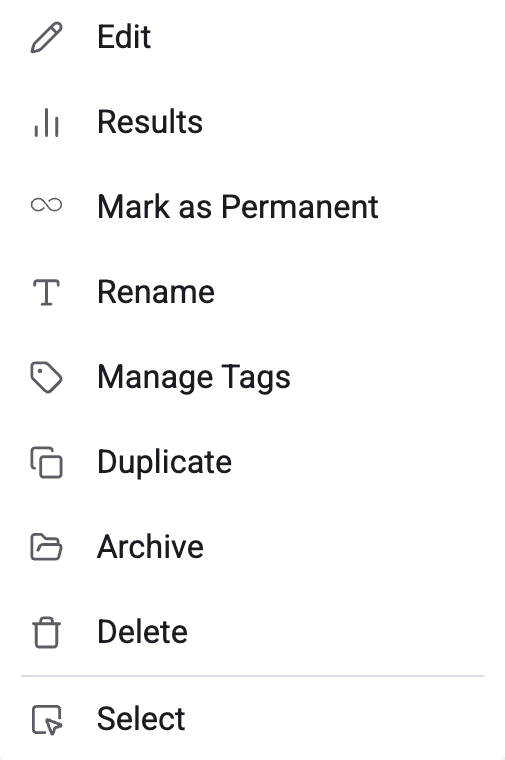
Click the three-dots menu on a flag's card to access the following actions:
### Edit
Opens the flag in the [Rollout Planner](../using-the-rollout-planner/basics/rollout-planner-structure).
### Results
Access a feature flag's overall results. Kameleoon redirects you to the Results page. [Read more](../../../experiment-analytics/analyze-results/feature-flag-results/analyze-a-feature-flags-overall-results)
### Mark as permanent/temporary
Changes the flag's type. Kameleoon shows only the option that applies to the flag's current type, for example **Mark as Permanent** for a temporary flag. [Read more](./manage-feature-flag-technical-debt)
### Rename
Rename an existing feature flag.
The **Rename** sidebar opens. To confirm the new name, click **Save**.
### Manage tags
Manage the tags associated with a feature flag.
The **Manage tags** sidebar opens. The list and the flag card highlight any tags currently associated with the flag.

Associate existing tags or create new ones. Click **Save** to confirm your choices.
### Duplicate
Duplicate an existing feature flag to quickly create similar flags.
The **Duplicate** sidebar opens. To confirm the creation of the new feature flag, click **Save**.
Duplication clones the rule configurations (for all environments), flag setup, and the original flag's tags.
### Archive
Archives the flag.
### Delete
Delete an existing feature flag.
You must set the flag to OFF in all environments before you can delete it.
To validate the deletion, confirm your choice in the pop-up.
### Select
Selects multiple flags to apply a grouped action. Read [Perform grouped actions](#perform-grouped-actions) for the list of available grouped actions.
## Expanded view

In Expanded view, each flag's rules appear beneath it. Rule rows display the same columns you've selected in the [Columns sidebar tab](#choose-which-columns-appear) as the flags above them, though each rule's status and type appear as text rather than an icon:
* **Name:** The rule's name.
* **Rule status:** Whether the rule is active or paused.
* **Type:** [Targeted Delivery](../using-the-rollout-planner/rules-and-targeting/define-targeted-delivery-rules), [Experimentation](../using-the-rollout-planner/optimizations-and-scheduling/create-feature-experiments), or [Progressive Delivery](../using-the-rollout-planner/rules-and-targeting/define-progressive-delivery-rules).
* **Modified:** The rule's last-modified date.
* **Created:** The rule's creation date.
* **Tags:** The rule's tags.
* **Team:** The rule's team.
## View additional details for a rule
Hover over the information icon on a rule to see additional details: the rule's project, ID, type, status, and creation date, plus the associated experiment's ID and creation date.
## Edit a rule or view its results
Hover over a rule to access two icons:
* Click the pencil icon to edit the rule in the [Rollout Planner](../using-the-rollout-planner/basics/rollout-planner-structure).
* Click the results icon to open the rule's own Results page. What you see there depends on the rule's type. [Read more](../../../experiment-analytics/analyze-results/feature-flag-results/analyze-a-rules-results)
## View flags across all environments
Selecting **All environments** from the environment dropdown changes the table's layout in both Collapsed and Expanded view.

In **Collapsed** view, each flag lists its environments beneath it (Production, Staging, and Development). Each environment row shows the date its state last changed and includes its own toggle to turn the flag on or off in that environment.
In **Expanded** view, the layout is similar, but each environment row also shows the flag's rules beneath it.
## Perform grouped actions
Apply actions to multiple feature flags simultaneously using the **Grouped actions** sidebar.

1. Click the **More options** (three-dots) menu on any feature flag card.
2. Click **Select**. The **Grouped actions** sidebar opens.
3. Select the checkboxes next to the feature flags you want to modify.
4. In the sidebar, click the action you want to perform:
* **Manage tags**
* **Archive**
* **Remove**
* **Mark as temporary**
* **Mark as permanent**
* **Turn on**
* **Turn off**
5. Confirm the action in the pop-up window.