> ## Documentation Index
> Fetch the complete documentation index at: https://docs.kameleoon.com/llms.txt
> Use this file to discover all available pages before exploring further.
# Getting started with the Graphic editor
> Open and navigate the Kameleoon Graphic editor to create A/B experiment variations directly on your website without writing code.
*Watch the [video tutorial](https://academy.kameleoon.com/get-started-with-web-experimentation/164219) for instructions on using the Graphic editor.*
The Graphic editor is Kameleoon's visual, no-code tool for building A/B experiment variations. It loads directly on top of your website in the browser, letting you click on any element and modify it without writing code. You can update text, swap images, restyle buttons, and adjust layouts, then preview and launch your experiment immediately.
Building test variations typically requires writing and deploying code, which creates a bottleneck when product managers, marketers, or designers depend on engineering resources. The Graphic editor removes that bottleneck so your whole team can run experiments independently.
**Before you start:**
* The Graphic editor doesn't work in incognito mode.
* When cross-site cookies are blocked, the Graphic editor won't work.
* Firefox blocks cookies by default. If you're using Firefox, you must manually enable cookies.
**Enhance the use of the Graphic editor with the [Kameleoon Graphic editor extension](#kameleoon-graphic-editor-extension).**
To troubleshoot issues with the Graphic editor and view best practices, [refer to the troubleshooting article](./troubleshooting-the-graphic-editor).
## Open the Graphic editor
Kameleoon's editing mode provides the tools to create webpage variations and launch A/B experiments.
### Via your website
To launch Kameleoon:
1. Navigate to a webpage on which you have installed the Kameleoon script.
2. Press **shift + F2** on Windows, or **fn + shift + F2** on Mac.
If nothing happens, add `#kameleoon=true` to the end of your URL.
3. Once Kameleoon loads, a pop-in opens. Fill in your username and password to access the editor.
4. A pop-in opens prompting you to select an experiment (if you've already created one) or create a new one. Click **Create** to create an experiment.
5. Fill in your experiment's information, and select **Classic A/B** under **Experiment type**.
6. Click **Start**.
The Graphic editor opens on your web page.
### Via the Kameleoon app
You can also launch the editor from the Kameleoon app.
1. Log in to your [Kameleoon app](https://login.kameleoon.com/app).
2. Click **New experiment** > **With the graphic editor**.
3. Fill in your experiment's information, and select **Graphic A/B** under **Experiment type**.
4. Click **Create**.
The Graphic editor opens on your web page.
## Structure
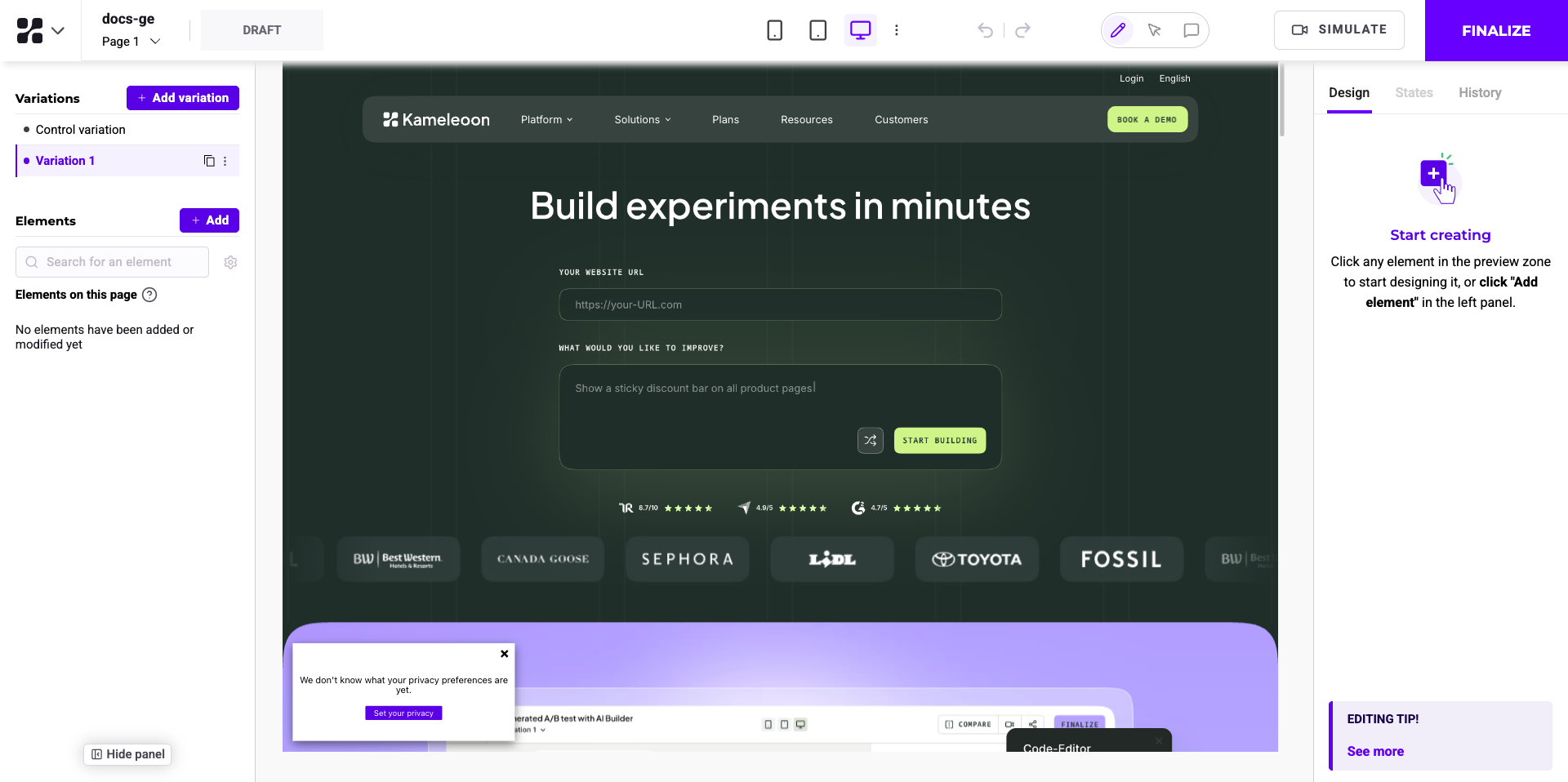
### Experiment panel (left side)
**Function**: Manages the current experiment, including variations and elements on the page.
**Features**:
* Add variations and elements.
* Edit CSS selectors.
* View and manage elements present on different pages.
### Main editing area (center)
**Function**: Allows direct interaction with webpage elements for editing.
**Features**:
* Select and modify text, images, and other content.
* Access editing shortcuts.
### Right panel (right side)
**Tabs:** Design, State, History
**Features**:
* Customize content, text, background, border, shadow, padding, margin, and more.
* Manage element states (for example, default, hovered, active, focus, disabled).
* Manage change history for each element.
### Top toolbar
**Function**: Offers tools for viewing and finalizing changes.
**Features**:
* Device mode switching.
* Simulate changes.
* Finalize the experiment.
## Customize the Graphic editor display
* **Zoom**: Adjust the zoom level to fit your screen and preferences.
* **Reduce Left Panel**: Minimize the left panel to increase workspace.
* **Hide Left Panel**: Completely hide the left panel for a distraction-free view.
* **Full screen Mode**: Expand the editor full screen for an immersive editing experience.
## Simulation and finalization
* **Simulation**: Click **SIMULATE** to preview how changes will look and function on your website.
* **Finalization**: Click **FINALIZE** to access the Finalization steps.
## Device switching
Use the top toolbar to switch between different device views (desktop, tablet, mobile) to ensure the design is responsive and displays correctly on all devices.
## Kameleoon Graphic editor extension
Enhance the use of the Graphic editor with the Kameleoon Graphic editor extension.
### When to use the Graphic editor extension
* Some websites restrict the usage of an iframe. To address iframe restrictions, use the Graphic editor extension to override these limitations and launch the Graphic editor.
* Certain websites present a mobile version when detecting a mobile user agent. To ensure the Graphic editor displays the mobile version correctly, the browser must identify as a mobile device. The extension facilitates the mobile identification process.
### How to install the Graphic editor extension
[Visit the Chrome Store](https://chromewebstore.google.com/detail/kameleoon-graphical-edito/jglbnpagaignkdmebicmmblgmledhpip) to download the Kameleoon Graphic editor extension.