> ## Documentation Index
> Fetch the complete documentation index at: https://docs.kameleoon.com/llms.txt
> Use this file to discover all available pages before exploring further.
# Use BigQuery as a destination
> Send Kameleoon experiment exposure events to Google BigQuery to centralize campaign results and analyze them alongside your existing data.
Data warehouse integrations are available as a premium add-on for the Web Experimentation and Feature Experimentation module. For more information, contact your Customer Success Manager.
With the BigQuery integration, you can simplify data retrieval for targeted campaigns and personalized user experiences.
**Key benefits:**
* Allows precise data collection, enhancing audience targeting for personalized campaigns tailored to specific audience needs and preferences.
* Set up Data Ingestion Tasks and extract data from BigQuery.
## Activate BigQuery as a destination
Once you have [enabled the BigQuery integration for your project](./setting-up-bigquery), you can activate **Use BigQuery as a destination** to send the results of your Kameleoon campaigns to BigQuery.

To do this, follow these steps:
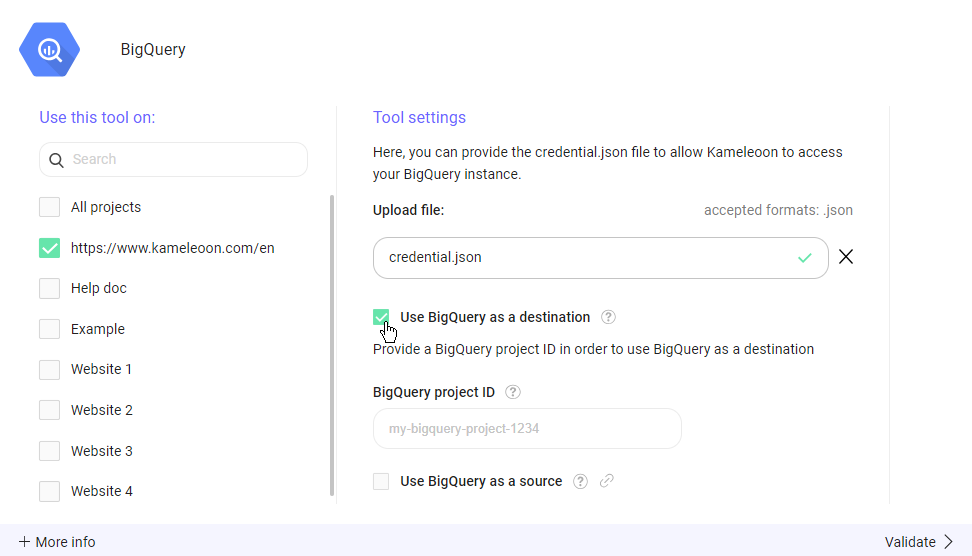
1. Within the selected project's configuration, you'll find a checkbox labeled **Use BigQuery as a destination**. Check this checkbox to enable the feature.
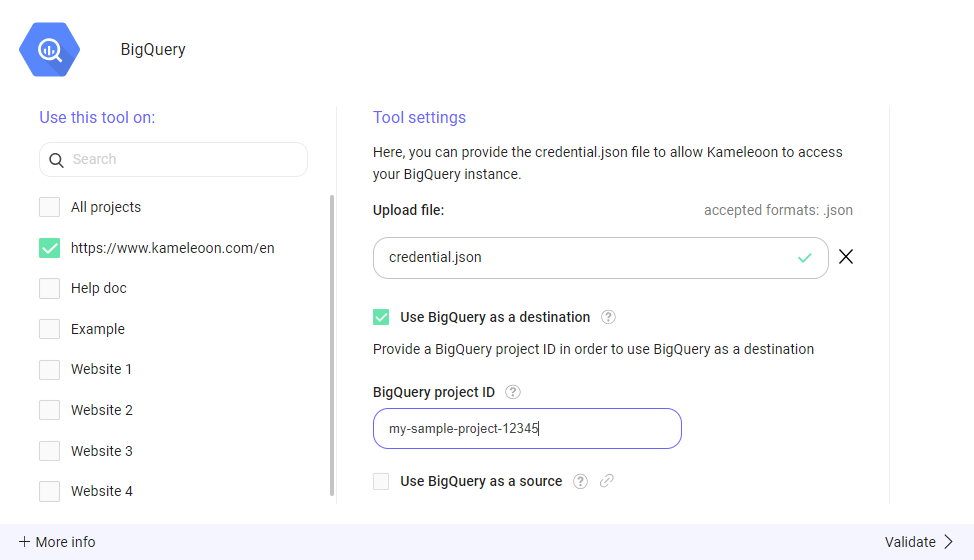
2. You'll need to provide the BigQuery project ID associated with your Google BigQuery project. Enter the project ID in the **BigQuery project ID**.
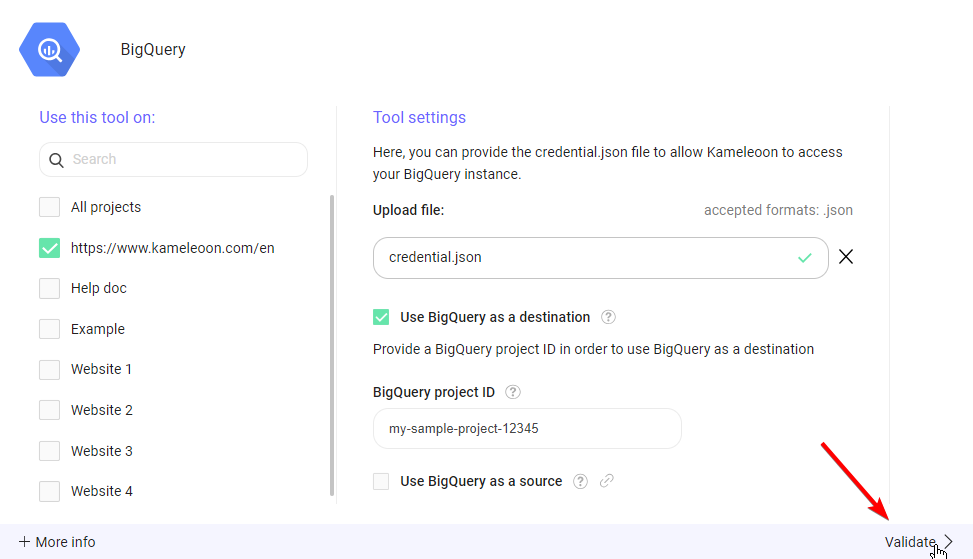
3. Click **Validate** to save your changes.
## What "Use BigQuery as a destination" does
Enabling **Use BigQuery as a destination** sends all Kameleoon experiment exposure events into Google BigQuery. Kameleoon saves the events in the "kameleoon" dataset you previously created, with write access for the Kameleoon service account, in a table called `kameleoon_experiment_event`. The SQL schema of this table is the following:
```sql theme={null}
CREATE TABLE kameleoon_experiment_event (
nonce BIGINT PRIMARY KEY, // unique identifier of the event
timestamp BIGINT, // timestamp in millis of the event
visitor_code VARCHAR(255), // Kameleoon visitor identifier
custom_visitor_id VARCHAR(255), // Visitor identifier used by your company
experiment_id BIGINT, // Kameleoon id of the experiment
variation_id BIGINT // Kameleoon id of the variation
);
```
Kameleoon reads the `custom_visitor_id` from the [Cross Device Reconciliation custom data](../../../../developer-docs/cross-device-experimentation), if you set it.