

- Write JavaScript code directly in Kameleoon and use the Previsualization feature to check it.
- Copy and paste code into the Chrome developer console.
Installation
You can now install the extension from the Visual Studio marketplace. Visual Studio marketplaceGetting started
The first step involves initializing the VS Code project. To initialize, go to the command palette and execute the Kameleoon - Initialize command.Press Ctrl+Shift+P to bring up the Command Palette then start typing “Kameleoon - Initialize” to filter and display the Kameleoon - Initialize command.
Import from the Kameleoon account
Import all projects, experiments, personalizations, variations, segments, goals, and custom data using the Kameleoon - Import all projects command. If the Kameleoon account is too large to load everything at once, use the Kameleoon - Import project command to select a single project to import.Usage
Import entities
You can import an entity using one of the following commands:Create entities
You can create an entity using one of the following commands:Duplicate entities
You can duplicate an entity using one of the following commands:Fetch entities
You can update your local entity using one of the following commands:Deploy entities
You can deploy your local entity using one of the following commands:Synchronize
Kameleoon Campaigns view
The extension provides a view called Kameleoon Campaigns. This view is available in the Explorer panel. It allows you to see all your projects and campaigns, along with their current state and associated variations. Kameleoon Campaigns viewTechnical reference
Entities
The following table provides an overview of managing entities using the VS Code extension:Project
The /projects folder contains the projects instead of the root, due to the /custom-data folder. [projects folder](https://storage.googleapis.com/kameleoon-storage-documentation/developers/images/VS-Code-Extension-3.png Each project has its own proj.info.json file containing IDs (site ID and sitecode). A project doesn’t have a proj.config.json file because the VS Code extension does not support project creation. Each project can contain experiments, personalizations, custom data, goals, segments, and the global script.Global script
The global script is contained under the /projects/*/global folder. [Global script](https://storage.googleapis.com/kameleoon-storage-documentation/developers/images/VS-Code-Extension-4.png Because each project can have only one global script, the global script folder does not contain any info.json or config.json file. It only contains the script itself.Experiment
Experiments are contained under the /projects/*/experiments folder. Experiments folder Each experiment has its own folder. Each experiment has its own exp.config.json and exp.info.json files.By default, the extension creates the experiment’s folder using the same naming convention from previous versions, but also creates the exp.info.json and exp.config.json files. The folder name is not important because only the configuration files are used.
Personalization
Personalizations are contained under the /projects/*/personalizations folder. Personalization folder Each personalization has its own folder. Each personalization has its own perso.config.json and perso.info.json files.By default, the extension creates the personalization folder using the same naming convention from previous versions, but also creates the perso.info.json and perso.config.json files. The folder name is not important because only the configuration files are used.
Variation
Variations are contained under the associated experiment or personalization folder. Variation folder Each variation has its own folder (even in a personalization). Each variation has its own var.config.json and var.info.json files.By default, the extension creates the variation’s folder using the same naming convention from previous versions, but also creates the var.info.json and var.config.json files. The folder name is not important because only the configuration files are used.
Segment
Segments are contained under the /projects/*/segments folder. Segments folder Each segment has its own folder. Each segment has its own segment.config.json and segment.info.json files.By default, the extension creates the segment’s folder using the same naming convention from previous versions, but also creates the segment.info.json and segment.config.json files. The folder name is not important because only the configuration files are used.
Goal
Goals are contained under the /projects/*/goals folder. Goals folder Each goal has its own folder. Each goal has its own goal.config.json and goal.info.json files.By default, the extension creates the goal’s folder using the same naming convention from previous versions, but also creates the goal.info.json and goal.config.json files. The folder name is not important because only the configuration files are used.
Custom data
Custom data are contained under the /projects/*/custom-data folder. Custom-data folder Each custom data has its own folder. Each custom data has its own custom.config.json and custom.info.json files.By default, the extension creates the custom data’s folder using the same naming convention from previous versions, but also creates the custom.info.json and custom.config.json files. The folder name is not important because only the configuration files are used.
Commands
Initialization commands
Kameleoon - Initialize
Kameleoon - Initialize is the first command to execute at the beginning of a new VS Code project. This command will initialize the Visual Studio Code project by creating the following files:Accessibility
Importation commands
Importation commands import missing entities. If the entity folder already exists, the command will not import it. Importation commands apply when importing a new entity. Use fetch commands to update entities to the latest versions.Kameleoon - Import all projects
This command creates the /projects folder and imports all projects, creating each project folder, subfolders, and files.Accessibility
Kameleoon - Import project
This command will import a specific project under the /projects folder, and thus create the folders and files for every entity associated with it.Accessibility
Kameleoon - Import experiment
This command will import a specific experiment under the project, and thus create the experiment folders and files (including exp.info.json and exp.config.json files and the variations).Accessibility
Kameleoon - Import personalization
This command will import a specific personalization under the project, and thus create the personalization folders and files (including perso.info.json and perso.config.json files and the unique variation).Accessibility
Kameleoon - Import goal
This command will import a specific goal under the project, and thus create the goal folders and files (goal.config.json and goal.info.json).Accessibility
Kameleoon - Import segment
This command will import a specific goal under the project, and thus create the segment folders and files (segment.config.json and segment.info.json).Accessibility
Kameleoon - Import custom data
This command will import a specific custom data under the project, and thus create the custom data folders and files (custom.config.json and custom.info.json).Accessibility
Fetch commands are available via the right-click menu on an entity folder containing a valid [entity-prefix].info.json file with an ID, nested in the respective common entity folder. Fetch commands completely overwrite entity files using the API response.
Kameleoon - Fetch project
This command overwrites project files and folders (including experiments, personalizations, variations, segments, custom data, and global script) with the latest version. This command also creates files and folders for experiments, personalizations, variations, segments, custom data, and global scripts if entities or files are missing.Accessibility
Kameleoon - Fetch experiment
This command overwrites experiment files and folders (including variations) with the latest version. This command also creates variation folders and files if variations or files are missing.Accessibility
Kameleoon - Fetch personalization
This command overwrites personalization files and folders (including the unique variation) with the latest version. This command also creates variation files and folders if they are missing.Accessibility
Kameleoon - Fetch segment
This command will overwrite your segment files and folders to the last version.Accessibility
Kameleoon - Fetch goal
This command will overwrite your goal files and folders to the last version.Accessibility
Kameleoon - Fetch custom data
This command will overwrite your custom data files and folders to the last version.Accessibility
Creation commands
Kameleoon - Create experiment
This command will create a new experiment under the project, along with the experiment folders and files (including exp.info.json and exp.config.json files and the first variation) as it is described in this document.Accessibility
Kameleoon - Create variation
This command will create a new variation under the experiment along with the variation folder and files (including var.info.json and var.config.json files) as it is described in this document.Accessibility
Kameleoon - Create personalization
This command will create a new personalization under the project, along with the personalization folders and files (including perso.info.json and perso.config.json files and the unique variation) as it is described in this document.Accessibility
Kameleoon - Create goal
This command will create a new goal under the project, along with the goal folder and files (including goal.info.json and goal.config.json files) as it is described in this document.Accessibility
Kameleoon - Create segment
This command will create a new segment under the project, along with the segment folder and files (including seg.info.json and seg.config.json files) as it is described in this document.Accessibility
Kameleoon - Create custom data
This command will create a new custom data in the Kameleoon account and in the /custom-data folder, including the custom data’s folder and files (including custom.info.json and custom.config.json files) as it is described in this document.Accessibility
Duplication commands
Kameleoon - Duplicate experiment
This command will duplicate an experiment under the same project. It duplicates the experiment folders and files but with a different id and name.Accessibility
Kameleoon - Duplicate variation
This command will duplicate a variation under the same experiment. It duplicates the variation folders and files but with a different id and name.Accessibility
Kameleoon - Duplicate personalization
This command will duplicate a personalization under the same project. It duplicates the personalization folders and files but with a different id and name.Accessibility
Kameleoon - Duplicate segment
This command will duplicate a segment under the same project. It duplicates the segment folders and files but with a different id and name.Accessibility
Kameleoon - Duplicate goal
This command will duplicate a goal under the same project. It duplicates the goal folders and files but with a different id and name.Accessibility
Kameleoon - Duplicate custom data
This command will duplicate a custom data under the same project. It duplicates the custom data folders and files but with a different id and name.Accessibility
Deployment commands push changes to production. Deploying or synchronizing any script file (JS, TS, CSS, SCSS) prompts the extension to build and save the compiled code in the _build folder.
Kameleoon - Deploy global code
This command will update the global code in production. The deployment of the global code is based on the project’s proj.info.json file.Accessibility
Kameleoon - Deploy experiment
This command will update the experiment in production, based on exp.config.json, exp.info.json, common.js, common.css, and every nested variation folder.Accessibility
Kameleoon - Deploy variation
This command will update the variation in production, based on the variation’s files, including var.config.json and var.info.json.Accessibility
Kameleoon - Deploy personalization
This command will update the personalization in production, based on perso.config.json, perso.info.json and the nested folder with js and css files.Accessibility
Kameleoon - Deploy goal
This command will update the goal information in production, based on goal.config.json and goal.info.json files.Accessibility
Kameleoon - Deploy segment
This command will update the segment information in production, based on segment.config.json and segment.info.json files.Accessibility
Kameleoon - Deploy custom data
This command will update the segment information in production, based on custom.config.json and custom.info.json files.Accessibility
Synchronization commands
Saving the synchronized file triggers synchronization. Only one entity can synchronize at a time.Kameleoon - Synchronize variation code to Chrome
This command will synchronize both js and css files to the chrome extension, injecting code into the webpage. It also accepts TS and SCSS files.Accessibility
Kameleoon - Synchronize common code to Chrome
This command will synchronize both common.js and common.css files to the chrome extension, injecting code into the webpage. It also accepts TS and SCSS files.Accessibility
Kameleoon - Synchronize global code to Chrome
This command will synchronize index.js file to the chrome extension, injecting code into the webpage.Accessibility
Kameleoon - Remove synchronization
This command will remove synchronization.Accessibility
Frequently Asked Questions
The word “entity” refers to the different objects the extension interacts with, such as experiments, personalizations, projects, variations, segments, custom data, or goals. Kameleoon no longer uses file and folder naming conventions. Create entities (experiments, variations, and others) using JSON configuration files. This extension uses a convention based on configuration files called file-based architecture. The file-based architecture eliminates the file and folder naming conventions used in previous versions. Instead, it uses multiple JSON files containing entity information. There are two types of files:[entity].info.json— This file contains the ID and other account related information.[entity].config.json— This file contains the configuration of the entity and can be used to recreate the same entity on another account.
Do the import commands overwrite the files and folders?
No, the import commands do not overwrite the files and folders, but an import command can create the files and folders if they don’t exist.Do the fetch commands overwrite the files and folders?
Yes, the fetch commands will overwrite the files and folders. In the future, Kameleoon will provide merging capabilities to manage the different changes between the remote version and the local one.Are importation commands generating a new engine.js (previously named kameleoon.js) script after they are executed?
No, importation commands do not generate a new engine.js script after execution.
Are creation commands generating a new engine.js script after they are executed?
Yes, creation commands generate a new engine.js script after execution.
Are deployment commands generating a new engine.js script after they are executed?
Yes, deployment commands generate a new engine.js script after execution.
How to rollback and install a specific extension version?
Uninstall the current Kameleoon extension if you have it installed. Make sure you reload your Visual Studio Code window to apply the changes. Go to https://marketplace.visualstudio.com/items?itemName=Kameleoon.kameleoon Click Version history. Version history Download the version you would like to install. You should have a VSIX file. Import the VSIX file in VS Code.- Go to the extensions tab.
- Click on the three dots at the top right corner of the “Extensions” panel.
- Click on “Install from VSIX…”
How to migrate from V3 to V4?
To migrate from V3 to V4, Kameleoon recommends pushing changes to production (optional), deleting all files and folders, and starting a new environment. The Getting started section explains the steps to set up a new environment.How to disable the minimize option in Visual Studio Code?
You can disable the minimize or “minify” option for Kameleoon in VS Code by following these steps:- Open the Extensions tab in VS Code.
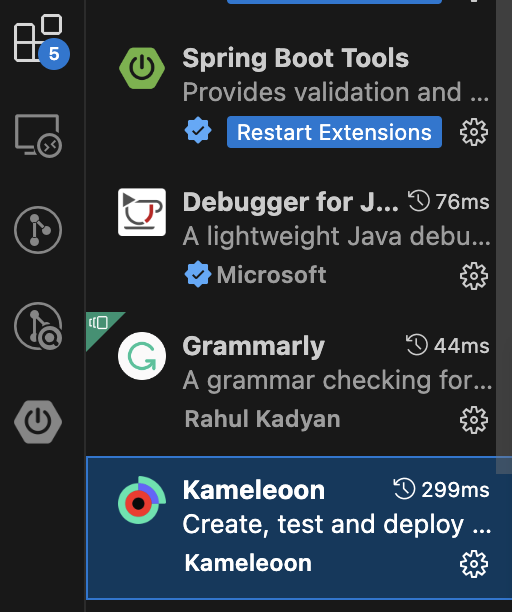
- From Kameleoon in the list of installed extensions and click on Settings.
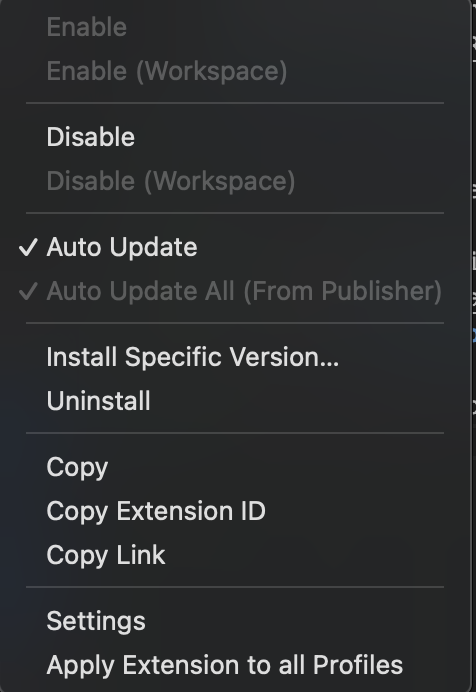
- Select the option labeled Enable JS minification for deploying and synchronization.
