

- Identify the specific variants or experiments your HubSpot contacts encountered.
- Tailor further engagement strategies, and enhance overall customer experience.
Considerations
- Kameleoon Tracking: Ensure that Kameleoon is properly installed and configured to track visitor interactions on your website or app.
- Integration Setup: It’s essential to note that the integration leverages HubSpot Custom Behavioral Events, a feature available exclusively in HubSpot Marketing Hub Enterprise. Verify that HubSpot is correctly integrated and configured across your website or app. This integration relies on the presence of the
window._hsqvariable from HubSpot, and the HubSpot tracking script must be accurately placed on all relevant pages to capture visitor behavior. - Permission: Ensure that visitors’ browsers allow the execution of JavaScript code, and grant any necessary permissions for tracking and sending data to HubSpot.
- Create an event in HubSpot:
typecampaign_namecampaign_idvariation_namevariation_id

Activate HubSpot on Kameleoon
The first step is enabling HubSpot. To do this:- Open the Kameleoon app.
- Click Admin > Integrations.
- Search for the HubSpot integration and click it.
- Click Install.
- Select the project on which you want to activate HubSpot.
- Click Next.
- Enter the HubSpot tracking ID you previously created.

- Click Next.
Associate HubSpot with a Kameleoon campaign
In the Graphic/Code editor
In the finalization panel, click Integrations > HubSpot.
On the personalization creation page
You can select HubSpot as a reporting tool for a personalization the same way you would in an A/B test.
On the Results page
Once you set HubSpot as a reporting tool for an experiment, you can select or clear it via the Kameleoon Results page. To do this:- Click the three dots menu in the top right of the screen.
- Select Experiment configuration (Open configuration for personalization). A side menu appears.
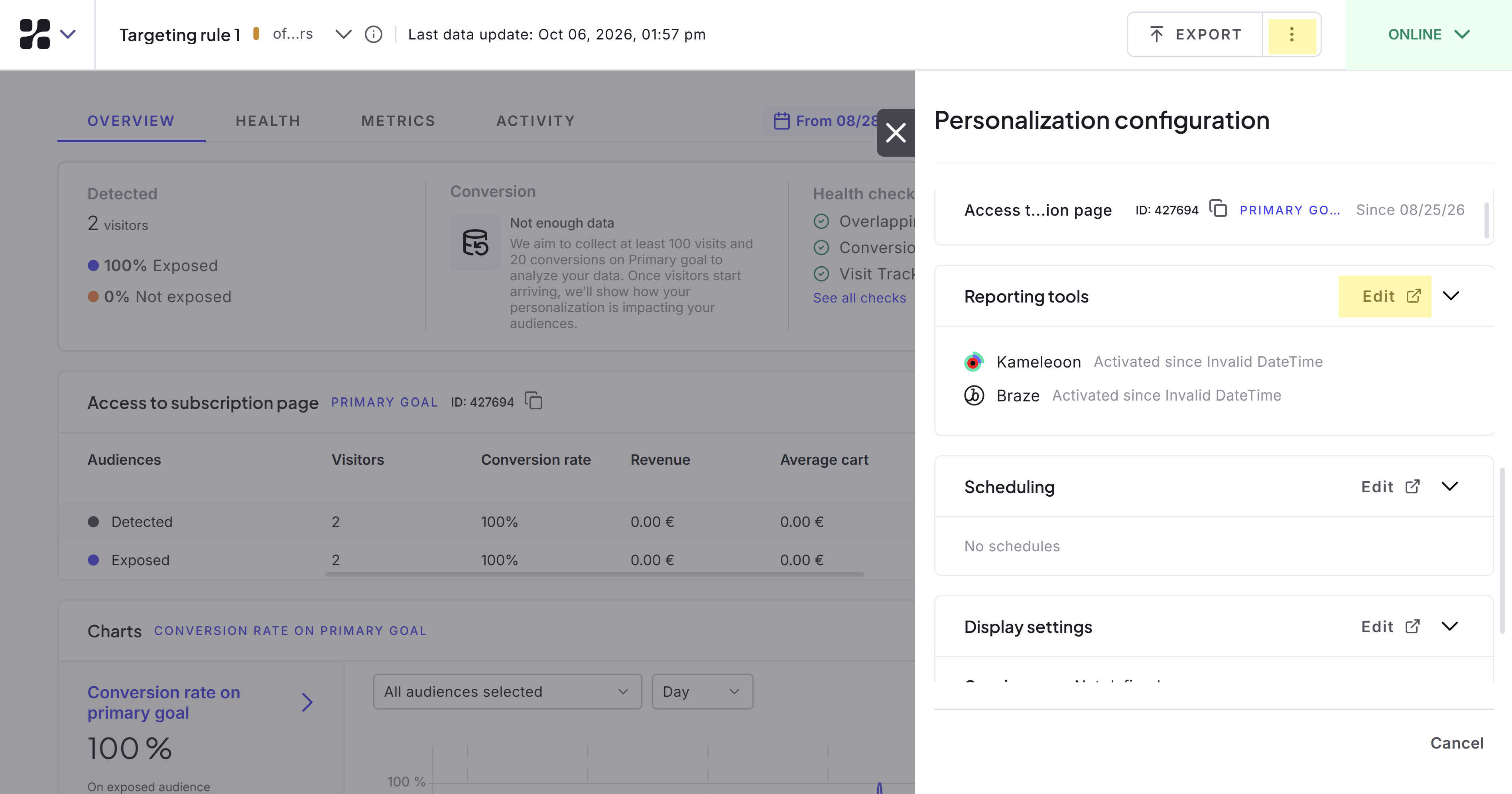
- Scroll to the Reporting tools section, then click Edit. The Finalization page appears.
- Click Integrations.
- Click Activate on the HubSpot tool.
- To save this step, click Next.
On a feature flag
To add HubSpot to a feature flag:- Click Edit on the feature flag you want to track.
- Click Integrations in the Reporting section. All the integrations you’ve enabled appear.
- Toggle HubSpot on for Delivery rules, Feature experiments, or both.