

What’s a single-page app (SPA)?
Definition and purpose
A single-page app (SPA) is a type of web app designed to provide a smoother and faster user experience by dynamically updating content without reloading the entire page. SPAs are typically built using modern JavaScript frameworks like React, Next.js, or Vue.js. Many SPAs also utilize server-side rendering (SSR), which adds complexity to client-side implementations like A/B testing and personalization. The primary advantage of SPAs is improving the visitor’s navigation experience by loading resources once and updating the content dynamically, rather than reloading the entire page after each action.Implementation challenges and solutions
SPAs introduce unique challenges for tools like Kameleoon that rely on page loads to apply variations or run scripts. To ensure optimal performance, it’s crucial to adapt the implementation strategy based on the type of SPA you’re working with. The following sections outline best practices and procedures for handling each scenario, ensuring smooth integration and accurate tracking of visitor behavior across your website.Native setup
If your website is a full-site SPA, enabling the “support for dynamic websites” option ensures Kameleoon looks for URL changes. When the URL changes, all Kameleoon scripts rerun, which includes the targeting code and the variation code. Kameleoon will also monitor updates in your SPA by using aMutationObserver to track changes in the DOM, even when the page URL remains static. This monitoring allows Kameleoon to apply (or reapply) variation changes dynamically as updates occur on your website. Kameleoon supports various modifications made through the Graphic editor, including:
- Style changes
- Text modifications
- Position updates (swap, insert before/after)
- Custom CSS selectors
- Click Admin > Projects.
- Click Edit on your project’s row.
- Click the Setup tab, then click Edit in the Technical configuration section.
- In the Technical configuration step, under Is your website a dynamic website (SPA or PWA)?, toggle Enable support for dynamic websites ON.
- Click Next to reach the Checklist step, then click Save changes.
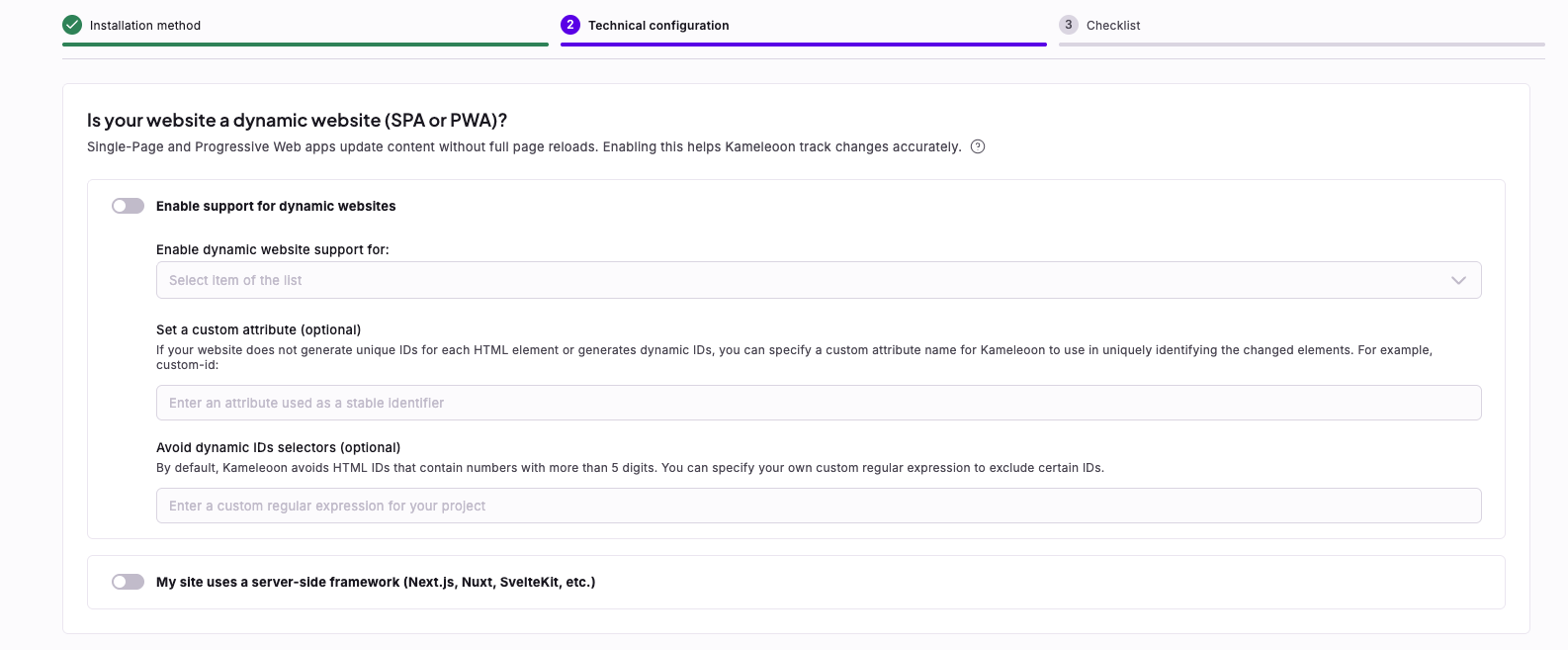
- Choose the scope: You can enable the feature for the entire site or limit it to specific elements using the Graphic editor. Restricting the scope to selected elements helps reduce the overall script weight. See how to mark an element as dynamic here.
- Set a custom attribute (optional): This option improves element identification and helps avoid issues related to dynamic attributes and selectors. If your website doesn’t generate stable or unique HTML IDs, you can define a custom attribute for Kameleoon to use when identifying modified elements. This attribute takes priority over the element ID when building the selector.
- Avoid dynamic ID selectors (optional): This option also improves element identification when dealing with dynamic attributes and selectors. By default, Kameleoon ignores HTML IDs that contain numeric sequences longer than five digits. You can define your own regular expression to exclude additional ID patterns if needed.
Set a custom attribute
You can define a custom attribute (for example,data-id, data-qa) to identify elements on the page. Custom attributes are particularly useful when your site generates dynamic IDs for HTML elements.
The Kameleoon Graphic editor identifies elements using CSS selectors, which fall into two categories:
- ID-Based Selection: If the element has an ID, Kameleoon will use it to locate and modify the element when the page loads.
- Combinator Selector: If Kameleoon finds no ID, it creates a selector path using the nearest parent element with an ID.
<button custom-id="1">) that reliably identifies elements across updates.
Avoid dynamic ID selectors
By default, Kameleoon avoids using element IDs that contain dynamically generated numbers longer than five consecutive digits. Instead, it builds a path using a nearby static parent element with an ID. You can customize this behavior by specifying a regular expression to exclude certain dynamic IDs, ensuring more accurate targeting.Custom setup
If your website isn’t a full-site SPA or you need to handle specific parts of the site, refer to the section below. There are four different use cases for custom SPA setups.Partial-site SPAs
To enable this option for specific pages, turn off Enable support for dynamic websites in the Technical configuration step of your project’s Setup tab, and add the following code to your Global custom script on the project’s Scripts tab:Page changes without URL changes
In cases where the DOM updates without a URL change, rely on alternative indicators to reload Kameleoon. Below is an example usingsessionStorage to detect page changes. You can add the code to your Global custom script:
Detect page changes with pathname
For pages where you need Kameleoon to rerun, but only when the pathname changes (ignoring query parameters), detect changes using the pathname instead of a full URL. You can add the code below to your Global custom script:
Reapply variation code without reloading Kameleoon
In some cases, certain page elements are dynamic, and when the code rehydrates, it may overwrite the Kameleoon code that Kameleoon already applied. To prevent this, you have two options:- You can inform Kameleoon when the page or a specific element has finished rendering by using one of the following methods:
- Define a window variable; for example,
window.pageLoadForKam = true. - Trigger an event on the page that Kameleoon can listen for. For example, using
pageLoadedorcontentUpdated:window.addEventListener('pageLoaded', () -> { runKameleoonVariationCode }). - Add a specific class or attribute to the
<body>tag or the target element. Then, in the variation code, use this class or attribute to make changes to the page or specific elements.
- Define a window variable; for example,
- In the variation code, you can set the fourth argument of the
runWhenElementPresentfunction totrue. This argument enables support for dynamic elements and single-page applications (SPA). When you enable this option, if Kameleoon doesn’t find the specified CSS selector for the element during the initial page load, Kameleoon monitors the DOM for the selector. Once the element appears in the DOM, Kameleoon executes the callback function. Additionally, if a new element matching the selector later appears on the page, Kameleoon re-executes the callback with the new element.
Retrieve data from the dataLayer
When using GTM as the retrieval method for setting custom data values, Kameleoon relies on a defineddataLayer to access its values. If your site updates the dataLayer after each URL change by stacking new entries instead of removing the old ones, Kameleoon may retrieve outdated values. This retrieval happens because the old data persists across pages, and Kameleoon might execute before your site updates the dataLayer. To prevent this issue, remove outdated entries before adding new ones. Alternatively, implement custom code to wait for changes in the dataLayer length before retrieving the current values:
General considerations
Event listeners, timeouts, and intervals
UseKameleoon.API.Utils to manage event listeners, timeouts, or intervals. These methods ensure that listeners and timers are automatically removed when a URL change occurs without a page reload. These removals prevent duplicates when Kameleoon reruns.
Unique element IDs
When adding elements via Kameleoon, ensure theirid starts with kameleoonElement. This naming convention ensures that Kameleoon removes the element before it reruns, which avoids duplication and conflicts.
Example:
<div id="kameleoonElement-myNewCTA"></div>
Page view incrementation
Kameleoon only counts a new page when all its scripts are re-executed, which happens under two conditions:- When your code calls
Kameleoon.API.Core.enableSinglePageSupport()and the URL changes. - When your code explicitly triggers
Kameleoon.API.Core.load().
Alternatives
React and JS SDKs
Kameleoon offers a React SDK and a JavaScript/TypeScript SDK designed for single-page apps. These SDKs provide an alternate method for running experiments and managing feature flags within your SPA by integrating the SDK into your app’s codebase. For a comprehensive list of features available for SPAs, refer to the SDK documentation.GatsbyJS plugin
Kameleoon also provides a dedicated plugin for GatsbyJS applications. To integrate Kameleoon with your GatsbyJS app, follow the instructions outlined in this article.Next.js framework
If your website uses Next.js, there’s an important consideration when using Kameleoon’s Graphic editor. Next.js websites load in a specific way that could cause conflict with Kameleoon’s changes if they happen too quickly, potentially causing the page to display incorrectly.Recommended solution
The Kameleoon team created a dedicated Next.js setup guide that solves this issue automatically. This setup ensures:- Kameleoon loads quickly and efficiently.
- Your page displays smoothly without flickering.
- Changes appear at the right time without breaking your site.
- Page navigation works correctly.
Alternative approaches
If you can’t use the recommended setup, there are other ways to prevent conflicts. Your developer can add a simple signal that indicates to Kameleoon “the page is ready for changes now.”- Method 1: Page ready indicator
- Add a marker to the
<body>element once the page is fully loaded. Then set up your Kameleoon experiments to only run when this marker is present.
- Add a marker to the
- Method 2: Custom event
- Use Kameleoon’s command queue to send a signal once your page is ready:
Events.trigger('my page is hydrated'). - Then configure your experiments to use the Custom event targeting criteria to wait for this signal before making changes. For more details on implementing custom events and other targeting, refer to this article
- Use Kameleoon’s command queue to send a signal once your page is ready:
The dedicated Next.js setup handles all of this automatically, so you won’t need to worry about these technical details.