


How to choose your consent management policy
For web experiments / feature experiments / hybrid experiments
The level of consent required depends on the applicable legislation. Enable either the CONSENT NOT REQUIRED option or the CONSENT REQUIRED option.Kameleoon complies with applicable regulations, as outlined in the GDPR guidelines available at https://gdpr.eu/cookies, and recommends the following approach:
- Targeted and progressive delivery rules primarily serve release-management and technical purposes. Kameleoon recommends exempting these rules from consent management and classifying Kameleoon as a “Strictly necessary cookie,” so Kameleoon triggers these types of rules even when the visitor has not given consent. Kameleoon limits the data collected for these feature flags to technical information, including exposure events such as rule and variation names and goal conversion events. When you use Kameleoon SDKs, the SDK may store a first-party cookie containing a randomly assigned ID. This ID uniquely identifies a visitor’s browser or device. If you prefer not to use this ID, the SDK lets you set your own ID instead. However, you are responsible for keeping this ID consistent, because Kameleoon uses it to display the same variation of a feature flag throughout the visitor’s session on your web app.
- For feature experiments, Kameleoon displays a variation of an experiment, but does not track data until the visitor gives consent, which ensures complete privacy and a non-intrusive user experience. However, if the visitor has not given consent, the visitor may see different variations of a given feature flag across multiple pages.
For web personalizations
You should always enable the CONSENT REQUIRED option. However, these choices depend on your use of Kameleoon. Your Customer Success Manager is there to help you choose the policy that best suits your website.For product recommendations
By default, product recommendations share the same consent settings as your A/B tests and personalizations. To configure a separate consent policy for product recommendations, contact your Customer Success Manager (CSM). For more information, see Consent management in the product recommendations documentation. However, these choices depend on your use of Kameleoon. Your Customer Success Manager is there to help you choose the policy that best suits your website.How to define your consent management policy
The consent management policy settings are accessible in the Kameleoon app’s Admin > Projects menu. You can set up the fields relating to consent management in each of the two blocks (Experiment and Personalization). You can define the settings separately for each of the Experiment (web or feature experiments) and Personalization options.
- The consent management policy.
- The behavior of Kameleoon when consent is unknown (only required for web experiments and personalizations).
- The behavior of Kameleoon on opt-out (only required for web experiments and personalizations).
Consent policy
Whether consent is required
Consent not required
Select this option if you are not subject to the GDPR or similar privacy regulations. If you select this option, all experiments run and Kameleoon collects data without consent.Consent required
Select this option if you are subject to GDPR or similar privacy regulations. If you choose this option, you must obtain visitor consent before Kameleoon collects any data. Kameleoon provides JavaScript methods, includingenableLegalConsent() and disableLegalConsent(), as well as the setLegalConsent() method. Use these methods after the visitor gives legal consent, to activate or deactivate Kameleoon on both the front end and server side.
Kameleoon delays tracking requests for data associated with experiment rules until the visitor gives explicit consent, provided the visitor gives consent during the current session. This approach ensures that no data tracking occurs for experiments until the visitor gives consent. For feature flags, Kameleoon sends delayed data on the next request when you call one of these methods:
isFeatureFlagActive(), getFeatureVariationKey(), getFeatureVariable(), or trackConversion(). You can also trigger immediate data transmission by calling the flush() method.The PHP SDK does not support delayed requests due to technical constraints, because the PHP SDK does not persist between requests. Each request creates a new SDK instance that destroys itself as soon as it receives a response, so the PHP SDK cannot keep in memory any requests stored before the visitor gives consent.Important technical considerations
- When using Kameleoon in Hybrid mode, call both the JavaScript Activation API and SDK methods after collecting consent, so Kameleoon collects user events from both the Kameleoon Application File and the SDK.
- Kameleoon cannot store the
visitorCodekey in a cookie, so you must share thevisitorCodekey the SDK generates for all first requests with the Kameleoon engine running client-side. Sharing this key with the client-side Kameleoon engine ensures proper tracking for new visitors who have not yet given consent. Incorporate the following code into the page’s source code when the experiment buckets the visitor into a variant. This code snippet passes thevisitorCodekey to the Kameleoon engine, enabling accurate tracking for new visitors once the visitor gives consent client-side. If you skip this step, the Kameleoon engine generates a newvisitorCode, which may result in a different variant on the second page load.
Consent information stays in sync between the Kameleoon Engine (application file kameleoon.js) and the JS SDK. This synchronization means that once you set consent in either the Engine or the SDK, Kameleoon automatically applies it to both. This feature eliminates the need for manual consent handling and ensures that SDKs operate in compliance with user preferences.
Behavior when consent is unknown
This section only applies to web experiments and personalizations.
Completely block Kameleoon
Kameleoon does not run at all, and Kameleoon does not collect or send any data to an analytics platform until the visitor gives consent.Partially block Kameleoon
Kameleoon triggers only web experiments with a Technical tag, and Kameleoon does not collect or send any data to an analytics platform until the visitor gives consent. How to tag a campaign as Technical? If you select Partially block Kameleoon, you must add the Technical tag to each web experiment you want to run. You can add the tag in either of the following ways: When creating an experiment or a personalization, associate the Technical tag with it.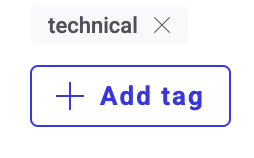
Do not block Kameleoon (don’t write/send anything)
Experiments run, but Kameleoon does not collect data without consent.Behavior on opt-out
This section only applies to web experiments and personalizations.