

- Segment: Who you target.
- Trigger: When you target them.
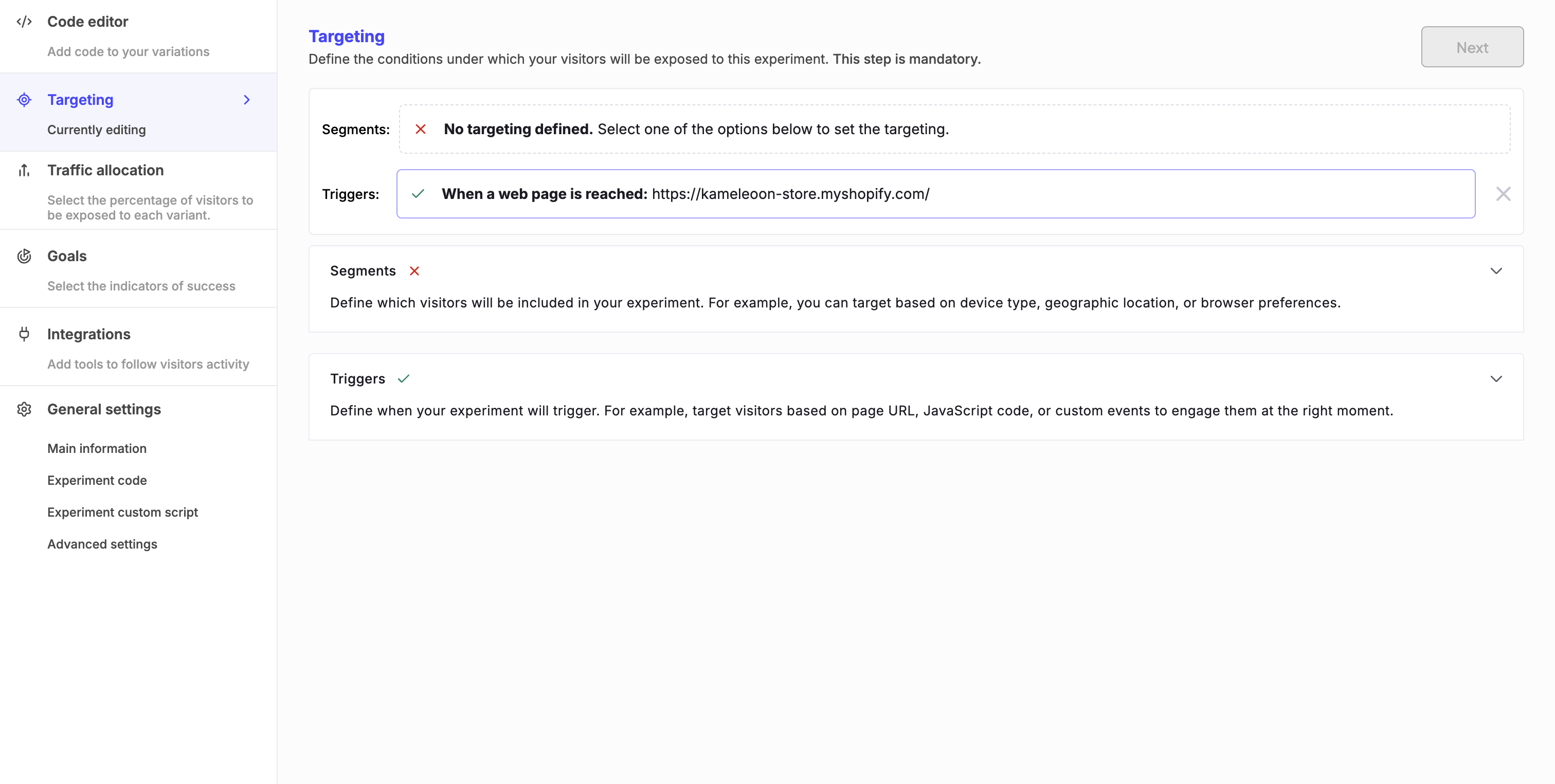
Defining a segment
Use the Segments panel to choose who to include in your experiment.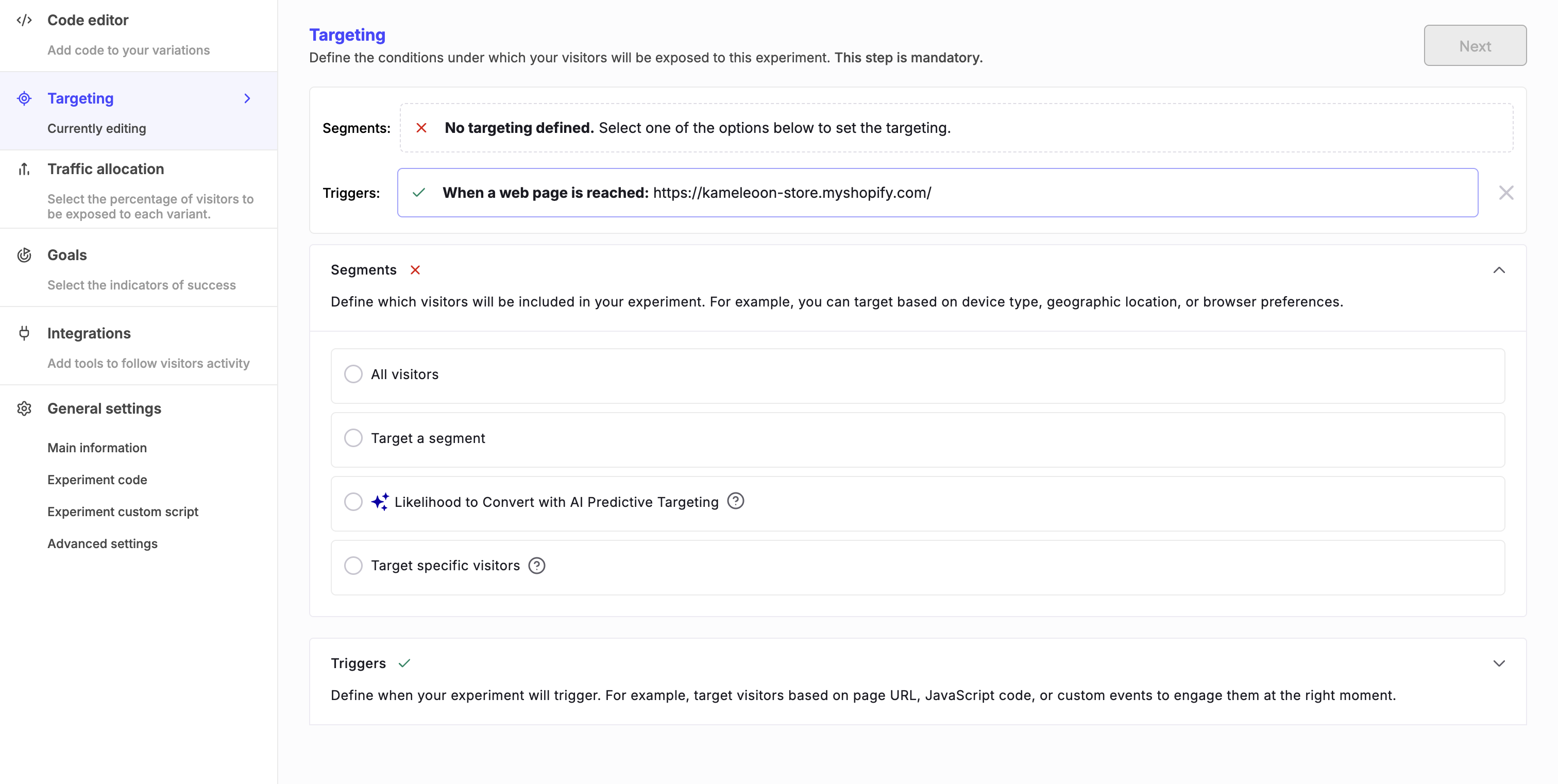
All visitors
Target all visitors without any restrictions.Target a segment
Select an existing segment you’ve already created in Kameleoon. You can also click Create a new segment to open the Segment Builder. For detailed instructions, refer to Create a segment.AI-powered targeting
Use AI Predictive Targeting to reach visitors most likely to convert, without manually creating a segment.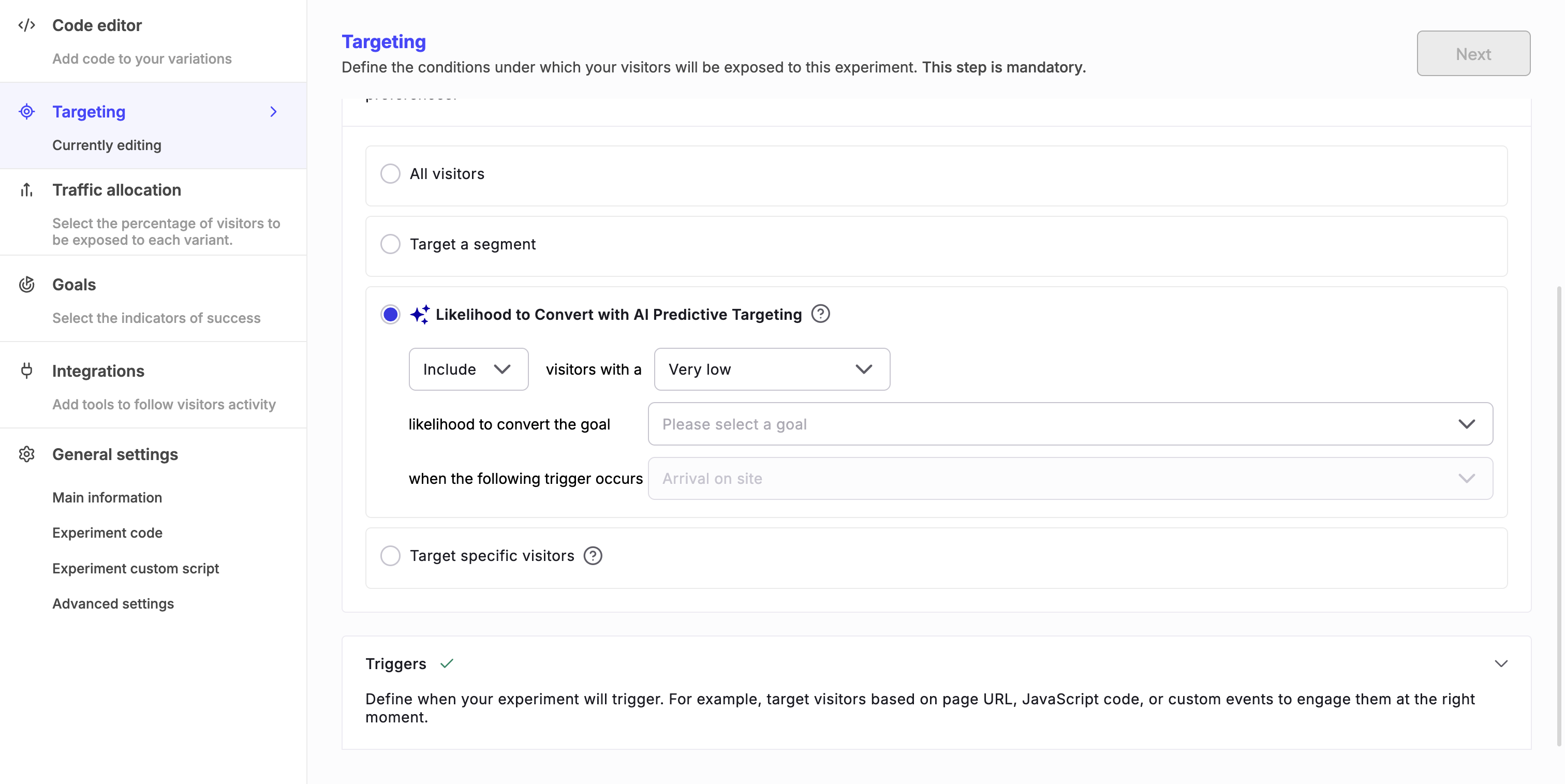
Target specific visitors
You can quickly create a one-off segment for a specific experiment. The segment does not appear in your main segment list. Choose one or more targeting conditions and fill in the required fields. You can add or remove conditions as needed. Available targeting conditions include:- Likelihood to convert
- Device type
- IP geolocation
- Browser cookie
- Segment
- Visitor type
Edit or cancel a segment
In the Summary panel, click the pencil icon to edit the segment, or the X icon to cancel the segment for this experiment.
Targeting a deprecated segment
If a legacy segment contains a Trigger condition, Kameleoon marks it as deprecated. You can still use the segment, but you cannot set a separate trigger to avoid conflicts. For more information, refer to Update your segments for better targeting.Defining a trigger
Use the Triggers panel to specify when to target your visitors. By default, new experiments have a trigger based on the website URL you entered when you created the experiment.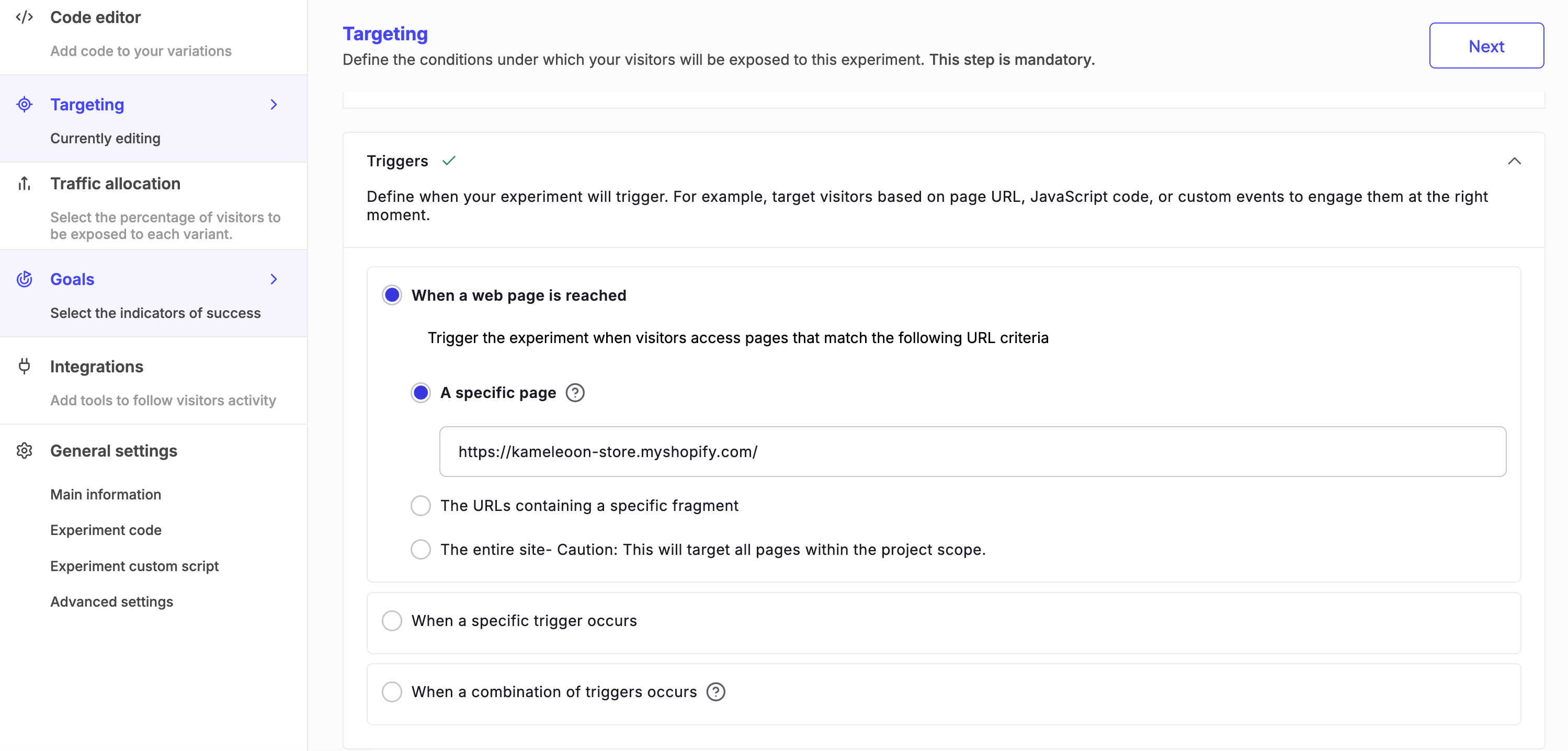
When a web page is reached
Trigger the experiment when visitors access pages that match the specified URL criteria.A specific page
You can target visitors based on the exact URL of the page they’re visiting. Specify the page’s URL in the text box. When you select this option, the targeting applies not only to the specified URL, but also to any version of the URL that includes parameters (for example, query strings). So, if a visitor is on the specified URL with any additional parameters, Kameleoon still targets them. For example, targetingwww.example.com/product also matches www.example.com/product? ref=homepage.
The URLs containing a specific fragment
You can target visitors who are on a page whose URL contains a specific fragment. Specify the fragment in the text field. This option is useful when you want to include multiple pages or variations of a URL without listing each one individually. For example, targeting the fragment/product matches URLs like www.example.com/product/123, www.example.com/category/product?, or www.example.com/product review.
The URLs of all modified pages
(Available only for experiments created with the Graphic editor) You can target the pages you have modified in your experiment. When you select this option, the campaign applies to the URLs of all pages where you made changes, based on the modifications you configure in the editor.The entire site
If you want your campaign to run across all of your site’s pages, select The entire site. When you select this option, Kameleoon includes every page within the project scope, regardless of the URL structure or parameter.Only use this option when your campaign is relevant across the entire site.
When a specific trigger occurs
Select an existing trigger from your list or click Create a new trigger. For detailed steps, refer to Create a trigger.When a combination of triggers occurs
Create a one-off trigger for this experiment only. To configure this option, select a targeting condition from the list and fill out its fields. You can also add another condition or remove the one you don’t need by clicking the corresponding buttons. Available targeting conditions include:- Trigger
- Visited URL
- JavaScript code
- Custom event
- Browser cookie
Edit or cancel a trigger
In the Summary panel, click the pencil icon to edit the trigger, or the X icon to cancel the trigger for this experiment. Next, continue to the finalization flow by distributing your experiment’s traffic.To accurately simulate an experiment that includes targeting, use the updated simulation mode.