

What makes a good prompt?
To get the best results from the AI, focus on these three core principles.Context
Provide context on the goal of your change. Explaining why you want to test a particular idea helps the AI tailor its output to meet your objectives.- Good: “Change the color of the CTA to blue to improve visibility for the user.” ✅
- Too vague: “Make this CTA nicer.” ❌
Precision
Be specific about the change you want to make. Give an accurate visual description, including details like size, color, shape, position, and style.- Good: “Add a white delivery truck icon next to the free shipping text to improve the click-through rate. The icon’s height should match the text height.” ✅
- No clear goal: “Change up the design.” ❌
Simplicity
Use simple, actionable terminology. Focus on clear instructions and stick to one request per prompt. Do not overcomplicate the prompt with technical jargon.- Good: “Replace the white background with a top-to-bottom gradient from
#2b5d50to#dae995.” ✅ - Too many instructions: “Change the button color, add a promo image, and move the text.” ❌
Follow a clear prompt structure
Users succeed with PBX when their prompts follow a clear structure. Use these four steps for more complex requests:- Define the change
- State exactly what transformation you want to achieve.
- Specify visual and layout changes
- Detail the visual changes for the target element, layout guidelines, and design elements. You can also reference mockups or design files here.
- Explain the behavior
- Describe how the target element should respond to user actions.
- Set boundaries and limitations (optional)
- Define technical limitations, responsive requirements, and what should not happen.
Examples in action
Review these examples to see how the prompt structure works in practice.The “compare hotels” prompt
This example provides a clear structure for a complex feature:“Build a ‘Compare hotels’ feature like the mockup. Add a ‘Compare properties’ toggle in the left sidebar to turn it on or off. When the toggle is on, show a ‘Compare’ checkbox on each property card in the bottom right. If at least one property is selected, show a sticky bottom tray with thumbnails, an ‘X/5 selected’ counter, and ‘Cancel’ and ‘Compare’ buttons. Clicking ‘Compare’ opens a simple modal showing the selected listing details. Limit selection to 5.”


Will this prompt work?
Prompt: “Replace the ‘Show on map’ block with a movable floating ‘Map’ button. Users should be able to drag it anywhere on the page. Clicking it should open the map view.” Verdict: ✅ Yes. It follows the recommended prompt structure and clearly describes the transformation.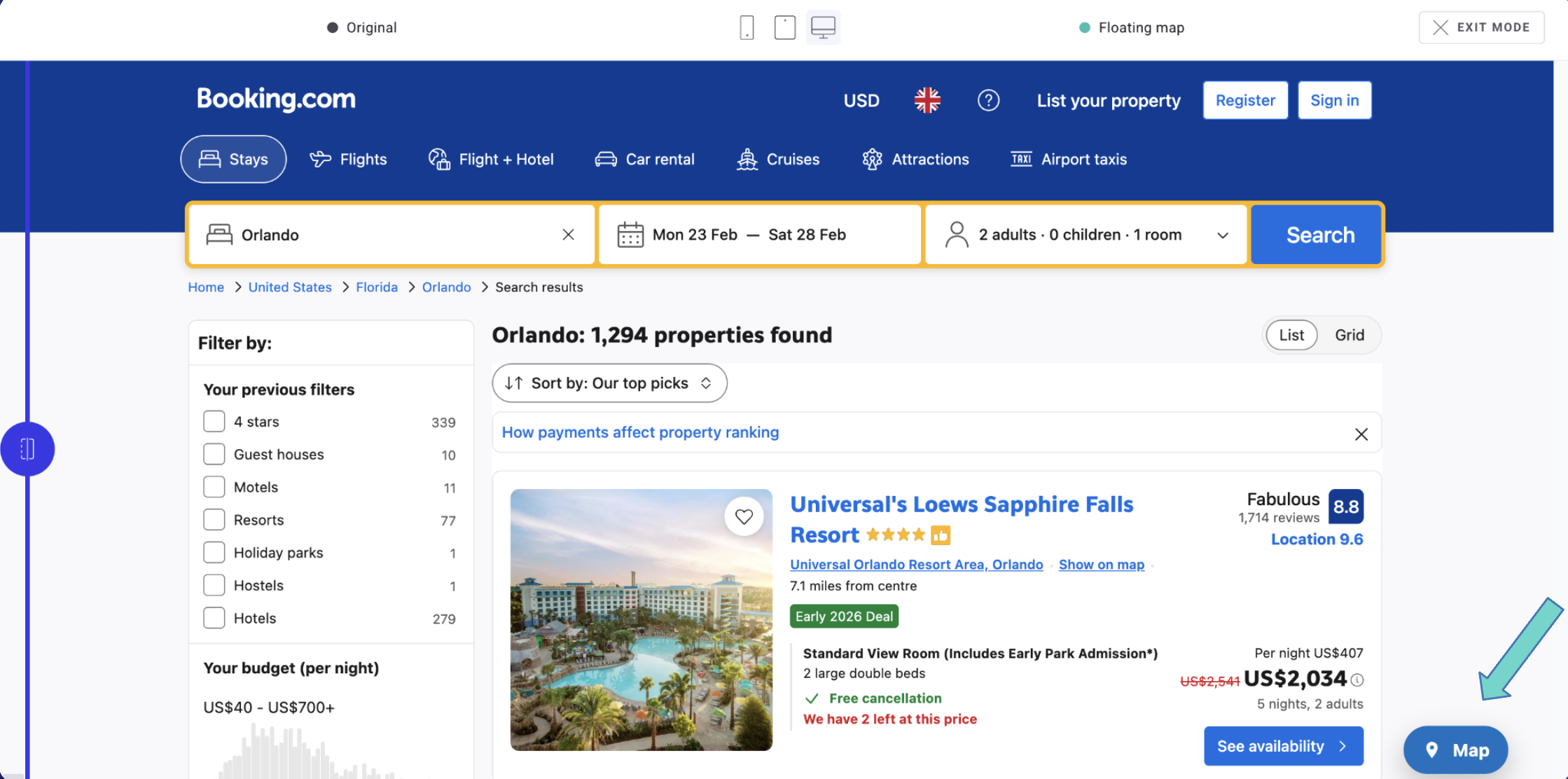

When in doubt…
If you are unsure how to phrase a prompt, keep these tips in mind:- Think big, but stay realistic: AI cannot create new backend functionality. Focus on UI and UX changes.
- Keep it simple: Straightforward changes do not need complex prompts.
- Treat AI like a teammate: Write prompts as clearly as you would brief a developer.
You can also use the Draw a sketch feature to visually circle the area you want to update, the Import a file feature to provide a mockup for the AI to follow, import designs directly from Figma, or reference an external website as inspiration—for example, “Replicate the filter layout from this travel booking site:
www.example.com/search.”FAQ
What types of variants can I create with prompts?
What types of variants can I create with prompts?
You can create any variant that you manage with frontend code. However, Kameleoon can’t generate code for prompts that require backend logic or server-side changes. A developer familiar with your backend system must handle such cases.
Can PBX handle complex experiments?
Can PBX handle complex experiments?
PBX excels at tasks such as:
- Text or content changes, including headlines, CTAs, and disclaimers.
- Style updates, like colors, fonts, and layout tweaks.
- Banners and content insertions.
- Simple interactive changes, including button repositioning, links, and modals.
Why does the same prompt generate different outputs when I run it multiple times?
Why does the same prompt generate different outputs when I run it multiple times?
The AI explores many possible ways to fulfill your request, so it doesn’t produce a fixed result. The same prompt can yield different outputs each time.Output variation occurs because of:
- Controlled randomness: The model varies its answers to avoid repetition and encourage creativity.
- Prompt interpretation: Minor context differences can prompt the model to focus on different details.
- Training diversity: The model draws on patterns from varied training datasets.
Can I submit follow-up prompts to fix incorrect output?
Can I submit follow-up prompts to fix incorrect output?
Yes, you can refine the output with follow-up prompts, but keep prompt history in mind.What PBX remembers:
- The code it most recently generated (used as context).
- Your previous prompt instructions.
- The full conversation history.
- Mockups or sketches added in earlier prompts.
- Less effective: “The arrow navigation doesn’t work.”
- More effective: “In the new carousel, the arrow navigation doesn’t work as expected. Fix it using the code generated from my previous prompt. The arrows should appear on the left and right and advance one image per click.”
- Identify the element or feature to fix.
- Describe the expected behavior.
- Reference the generated code explicitly.
- Include relevant technical details.
Can I prompt changes on elements that appear on hover?
Can I prompt changes on elements that appear on hover?
Yes, provided the page’s DOM contains the HTML code for the hover-triggered element. If JavaScript injects the element dynamically after the hover interaction, Kameleoon’s AI might not detect or modify it accurately.For best results, verify that:
- The hover element exists in the initial HTML, even if hidden.
- The structure is stable and doesn’t generate asynchronously.