

Accessing Comment mode
To access Comment mode, click the text bubble icon in the mode toolbar.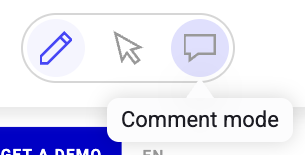
Adding a comment
To add a new comment:- Select your desired variation in the Variations sidebar.
- Click +Add in the Comments sidebar.

- Type your comment in the text field and click Save.

Actions in the Comments sidebar
Editing and deleting a comment
To edit a comment:- Click the three-dots menu > Edit comment.
- Edit the comment’s text.
- Click Save.
- Click the three-dots menu > Delete comment > YES.
You can delete a comment only during the first 15 minutes after its creation, and only if it has no replies.

Reply to a comment
To reply to a comment:- Click Add reply.
- Type your reply into the text field.
- Click Save.
Resolve a comment
To resolve a comment:- Hover over the comment and click the checkmark icon.

Settings
You have access to a variety of settings in the Comments sidebar. Click the cog icon to view the available settings.
- Sort comments
- You can sort comments newest to oldest, oldest to newest, or alphabetically by the author’s name.
- Display in list
- You can choose to display only comments in which you’re mentioned or all replies.