

This feature assumes development experience. If you’re not comfortable working with the DOM or Shadow DOM encapsulation, reach out to a developer or look into online resources about Web Components and Shadow DOM fundamentals.
Limitation of standard selectors
Standard CSS selectors or JavaScript methods likequerySelector() or $() won’t work on elements inside a Shadow DOM. The shadow root hides these elements from the main page, meaning:
- You can’t target elements inside a Shadow DOM using the usual selection methods in the Kameleoon Graphic editor.
- Targeting these elements using traditional CSS or jQuery-style selectors in your experiment might fail.
- Any modifications (like text changes, style updates, or content insertion) may not apply unless you take special steps to pierce the Shadow DOM boundary.
Working with Shadow DOM in the Graphic editor
In most cases, users can select elements inside a shadow root directly from the preview zone in the Kameleoon Graphic editor.When the additional “Shadow root path” input appears
In some cases, when you attempt to select or edit an element inside a Shadow DOM using the Kameleoon Graphic editor, you may see an additional input field labeled Shadow root path. This field appears when Kameleoon detects that the target element exists within a shadow tree that standard selectors can’t reach. The Shadow root path lets you define a specific path through nested Shadow DOM layers so Kameleoon can reach and modify the element during experiment execution. Mock connection: the Graphic editor uses this path to “mock” the connection between the main DOM and the element inside the Shadow DOM, which lets you visually edit and preview changes as if the element were part of the regular page structure.Examples
Targeting a button inside a shadow root
In the Kameleoon Graphic editor, you can target elements inside a shadow root:- Directly in the Preview zone: If the element is accessible, you can select it within the editor preview, just like any standard element.
- Using “Edit selector”: For more complex structures you can manually construct the selector path using the Edit selector input. Use the
::SHADOW-ROOT::separator to indicate a step into shadow root.
Inspecting Shadow DOM in DevTools
- Right-click the element > Inspect.
- In the Elements panel, look for
#shadow-root (open)under the custom element. - Expand it to view the inner elements.
Visual cues or labels in the UI
While working with web pages that use Shadow DOM, the Kameleoon Graphic editor provides several visual indicators to help you identify when elements are part of a shadow root.#shadow-root in the Elements panel
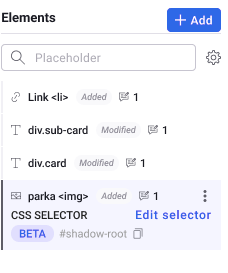
#shadow-root as part of their CSS selector, showing that the shadow root encapsulates the element rather than exposing it in the main DOM tree.
”Shadow root path” field in the selector panel
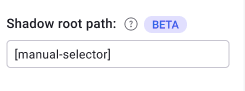
::SHADOW-ROOT:: syntax.
How to write a selector path for Shadow DOM elements
When working with Shadow DOM elements in Kameleoon’s Graphic editor, a standard CSS selector isn’t sufficient. You must define a selector path that includes the shadow root. To target an element inside a single-level shadow root, use the::SHADOW-ROOT:: separator:
custom-element::SHADOW-ROOT::.target-button
The ::SHADOW-ROOT:: separator causes Kameleoon to enter the shadow root of the specified element and continue targeting inside it using standard CSS selectors.
Kameleoon supports navigating only one level into the Shadow DOM. If the element sits within multiple nested shadow roots, you can’t target it using a full selector path.
Example
my-element::SHADOW-ROOT::.cta
This selector path directs Kameleoon to:
- Select the
my-elementelement. - Enter its shadow root.
- Target the
.ctabutton inside it.
Limitations and considerations
When working with Shadow DOM, keep the following limitations in mind:- Closed Shadow DOMs: You can’t access or modify elements in a closed shadow root using the Graphic editor or standard JavaScript.
- Dynamic or script-generated content: If a script generates or updates content inside a shadow root dynamically, your changes may not persist or take effect as expected.
- Styling restrictions: Styles applied from outside the shadow root often won’t affect inner elements due to Shadow DOM’s style encapsulation. You may need to apply CSS rules directly within the component’s internal structure instead, which isn’t possible via the Graphic editor.
Shadow root (closed)
Some web components use a closed shadow root, meaning their internal DOM is completely hidden from the browser’s developer tools and JavaScript. Unlike an open shadow root, which you can access using.shadowRoot, a closed shadow root doesn’t expose its content through the DOM, making it inaccessible to:
- The Graphic editor
- JavaScript-based targeting
- Selector paths or custom scripts
What can you do?
If a key element is inside a closed shadow root, you’ll need help from a developer. They may:- Rebuild the component using an open shadow root.
- Expose specific elements for external targeting.
- Provide a hook or workaround for targeting.