

Access the Custom data page
To access the Custom data page in Kameleoon, click Settings > Custom data.Manage your custom data
Each custom data has a card that displays its information.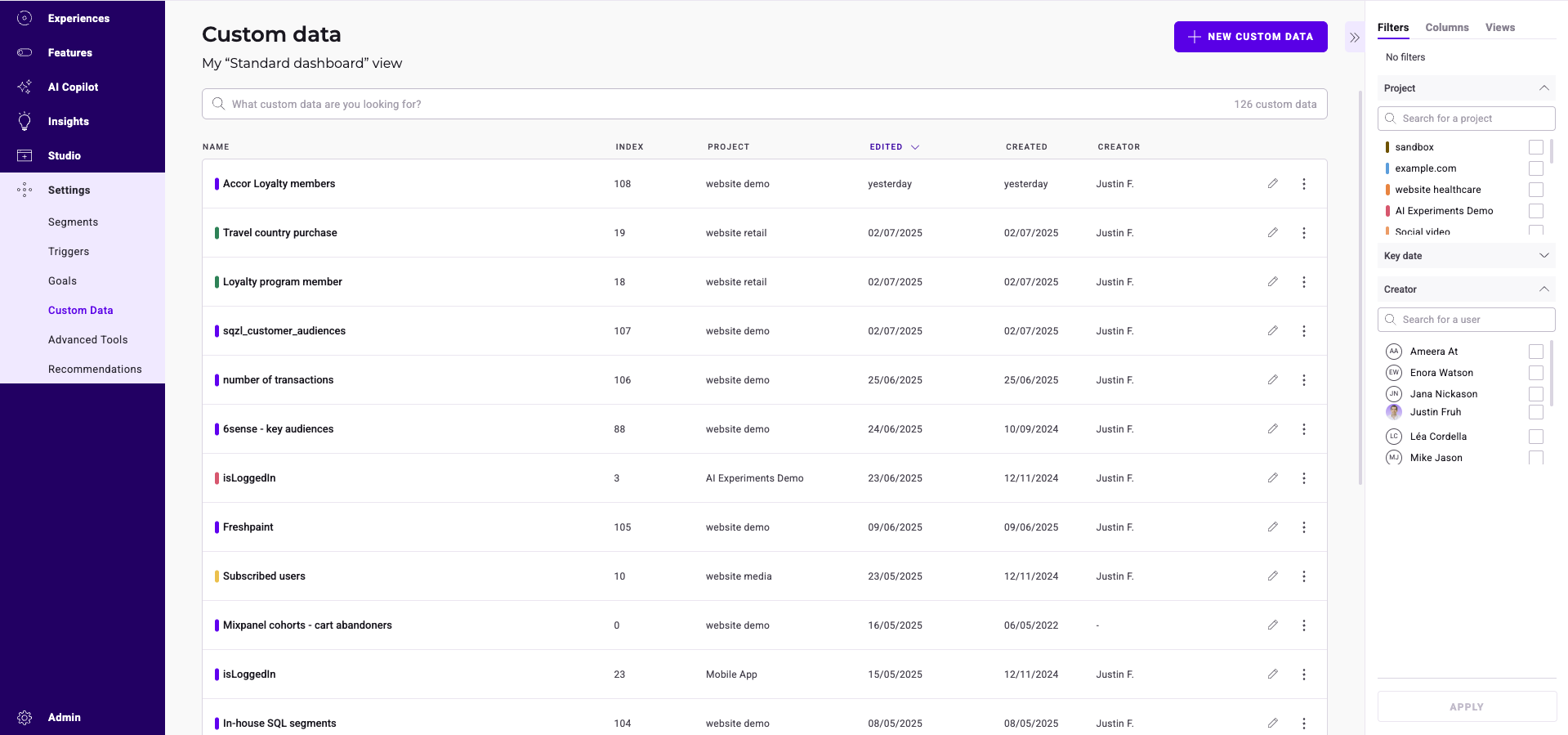
Find a custom data’s index
Kameleoon assigns each custom data a numeric index when you create it. The index uniquely identifies a custom data, and you need it when you reference the custom data from code, including:- The
CustomDataNameOrIndexargument ofsetCustomData()in the Activation API. - The keys of the
metadataobject passed toprocessConversion()andtriggerGoal()(for example,{ 5: "Amex Credit Card" }references the custom data with index5). - SDK methods that accept a custom data index.
- Click Settings > Custom data.
- Locate the custom data in the list. The numeric value next to its name (in the INDEX column) is the index used in code.
Find a custom data
A search bar, a filter tool, and a sorting tool help you find a particular custom data.Filter custom data
You can filter the displayed custom data based on several criteria:- Project
- Key date
- Creator
Project
Filter the displayed custom data by project. Select the projects and click Apply.Key date
Narrow the list by key date: last modification or creation date. Select a date and click Apply.Creator
Narrow the list by the author who created each custom data. Check the authors and click Apply.Sort custom data
Sort your custom data using any of the following criteria:- Name
- Index
- Project
- Edition date
- Creation date
- Creator
Name
Hover over Name and click the chevron to sort custom data in alphabetical (or reverse alphabetical) order.Index
Hover over linked to and click the chevron to rank the custom data by index.Project
Hover over Project and click the chevron to sort custom data in alphabetical (or reverse alphabetical) order by project.Edition date
Hover over Edited and click the chevron to sort custom data from newest edition to oldest or vice versa.Creation date
Hover over Created and click the chevron to sort custom data from newest creation to oldest or vice versa.Creator
Hover over Creator and click the chevron to sort custom data in alphabetical (or reverse alphabetical) order by creator.Edit a custom data
To edit an existing custom data:- Locate the custom data’s card.
- Click Edit on the custom data card. A pop-in window opens.
- Enter your changes in the pop-in.
Duplicate a custom data
To duplicate custom data:- Select a custom data.
- Click the three-dots menu.
- Click Duplicate. The Duplicate sidebar opens.
- Click Save to validate the duplication.
Delete a custom data
To delete custom data:- Select a custom data.
- Click the three-dots menu > Delete.
Multiple selection
To select multiple custom data and apply a common action to them:- Select a custom data.
- Click the three-dots menu.
- Click Select. The custom data becomes selectable and the Grouped actions sidebar opens.
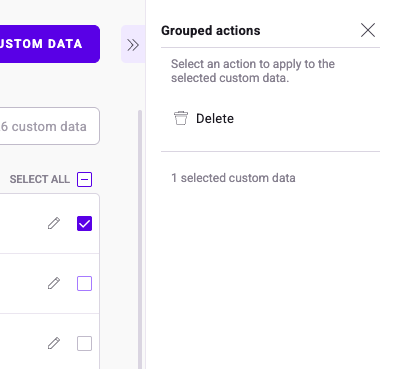
- Select all
- Deselect all